Thanks - one day may try again.
I guess depends on repositories and how you setup - I was surprised. I did my build as per the archlinuxarm pi-4 instructions but modified as per kiljan. But the cherry on the top was I couldn’t get gnucash to build 
As above pretty sure it is all a scorecard against my linux incompetence rather than a fundament block.
BUT - pride & fall …
My i2c grabs of the battery status in Alpine have stopped working  It may be related to an update but I can’t prove that yet.
The battery is still detected on the i2c bus at address 0x64
doas i2cdetect -y 1
0 1 2 3 4 5 6 7 8 9 a b c d e f
00: – – – – – – – –
10: – – – – – – – – – – – – – – – –
20: – – – – – – – – – – – – – – – –
30: – – – – – – – – – – – – – – – –
40: – – – – – – – – – – – – – – – –
50: – – – – – – – – – – – – – – – –
60: – – – – 64 – – – – – – – – – – –
70: – – – – – – – –
but offsets 0x04 and 0x0e are consistently 00
i2cget -y 1 0x64 0x00 i
0xa0 0x00 0x00 0x00 0x00 0x00 0x00 0x00 0xf0 0x00 0x40 0x14 0xaa 0x50 0x00 0x00 0x00 0x00 0x00 0x00 0x00 0x00 0x00 0x00 0x00 0x00 0x00 0x00 0x00 0x00 0x00 0x00
I have yet to work out what happened. I guess first check is boot up Pi OS.
ps - boot into Pi OS and it is working fine (on the Argon desktop icon). Boot back to Alpine and it is working again! I guess there is a device setup/reset command somewhere that I need to use in Alpine …
1 Like
I thought it may be useful to put in a mini-tutorial how I get conky working. Conky is a great tool for monitoring stuff - I come from a generation where we had a wall full of neon indicators that showed the complete register set of the computer I was operating! I need to know what is going on You can see my effect in post 17 above (and my entire desktop in post 2), and @spanspek desktop with conky in post 20 above.
Normally conky has built-in variables for retrieving battery status: however at launch there was no linux driver for the ONE UP battery and so those conky methods did not work. However the battery is connected to the i2c bus and so it is relatively simple to query that to obtain the status.
This first part of this tutorial is getting the battery status in Alpine via standard linux i2c tools. The process for other flavours of linux should be similar - in RaspberryPi OS steps 1, 2 & 3 may happen auto-magically when you add i2c support in raspi-setup? Part 2 will be a later post in this thread!
- Install the required package:
doas apk add i2c-tools
- Activate the i2c bus - in /boot/usercfg.txt we need (otherwise /boot/config.txt)
dtparam=i2c_arm=on
- And at startup - we need the module loaded
doas echo ‘i2c-dev’ > /etc/modules-load.d/i2c.conf
If we reboot now then we should be able to verify we can see the battery at address 0x64 on the i2c bus
$ doas i2cdetect -y 1
0 1 2 3 4 5 6 7 8 9 a b c d e f
00: – – – – – – – –
10: – – – – – – – – – – – – – – – –
20: – – – – – – – – – – – – – – – –
30: – – – – – – – – – – – – – – – –
40: – – – – – – – – – – – – – – – –
50: – – – – – – – – – – – – – – – –
60: – – – – 64 – – – – – – – – – – –
70: – – – – – – – –
- We can now build a small script that retrieves the battery % and whether it is (dis)charging - first allow the program to be run by mere mortals
doas chmod u+s /usr/sbin/i2cget
then create the script
$ cat bin/battery.sh
#!/bin/sh

cstat=$(printf “%d” “$(i2cget -y 1 0x64 0x0e)”)

printf "Battery: %d%% " $(i2cget -y 1 0x64 0x04)

if [ $cstat -lt 128 ]; then echo “↗”; else echo “↘”; fi
Note by default Alpine does not have bash - and make it executable
chmod + x bin/battery.sh
- Now we can see simply our battery status
$ ./bin/battery.sh
Battery: 100% ↘
Part 2 of this is the final steps to get conky on my desktop.
- Install it
doas apk add conky
- Create a conky.conf in ~/.config/conky/
In that file you first need whatever Configuration settings you want or need, followed by the “text” definition of what gets output which will include as many of the conky variables as you want/need. Writing your own file from scratch is pretty daunting, it is much easier to start with one you can copy: There are a whole lot of examples on the conky wiki. And mine looks like this
cat .config/conky/conky.conf
– random comment

conky.config = {
out_to_x = false,
out_to_wayland = true,
background = true,
no_buffers = true,
alignment = ‘top_right’,
gap_y = -10,
own_window = false,
own_window_argb_value = 0,
own_window_type = ‘desktop’,
default_shade_color = ‘grey’,
draw_shades = true,
font = ‘DejaVu Sans:size=10’,
use_xft = true,
update_interval = 5,
imap = 'my.email.server myloginID mypassword ’
}

conky.text = [[
${alignc}${font DejaVu Sans:size=40:style=Bold}${time %H}${font DejaVu Sans:size=40}:${time %M}${font}

${alignc}${font DejaVu Sans:size=14}${time %a %d %b %Y}${font}

${alignc}${exec /home/csn/bin/battery.sh}
${alignc}CPU: ${cpu cpu0}% ${acpitemp}°C
${alignc}${cpugovernor 1} ${freq_g}GHz

${alignc}Mem: ${memperc}%
${alignc}Disk: / ${fs_used_perc /}%  /boot ${fs_used_perc /boot}%
${alignc}I/O: ${diskio nvme0n1} ${hwmon 1 temp 1}°C

${if_up wlan0}${alignc}wlan: ${wireless_essid wlan0}  Signal: ${wireless_link_qual_perc wlan0}%
${alignc}IP: ${addr wlan0 }


${alignc}email: ${imap_unseen}${endif}
]]
You can see my call to battery.sh that I created in the previous post
- Last, you need to start conky when you want it. As I am running labwc I have a line in
.config/labwc/autostart
conky -d &
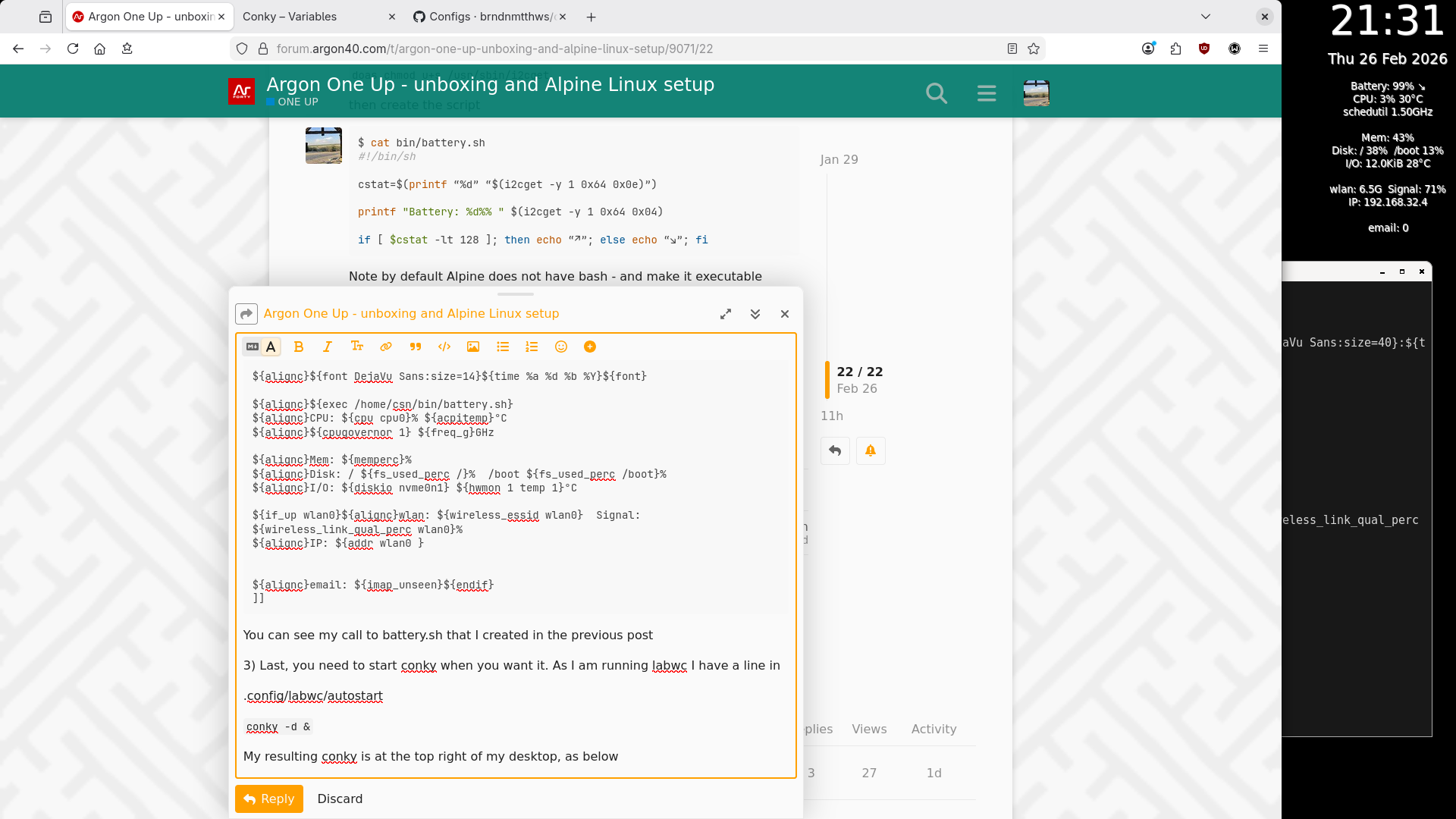
My resulting conky is at the top right of my desktop, as below
2 Likes